> ## Documentation Index
> Fetch the complete documentation index at: https://stackone-hub-mintlify-faq-auth-1778741320.mintlify.site/llms.txt
> Use this file to discover all available pages before exploring further.

# Workday Background Check

> Send invitations for background checks and verify results in Workday. This guide helps you manage the background check process for candidates.

## Submit a job application for the candidate in Workday

<Steps>
  <Step title="Apply for a job">
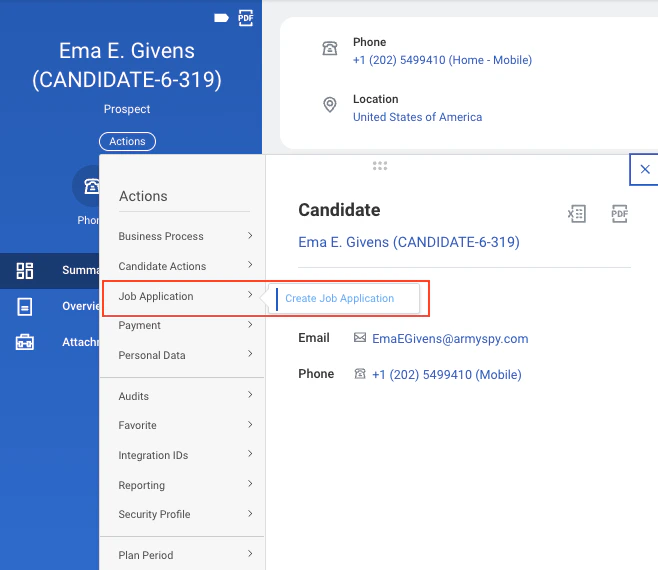
    Navigate to the <i>Find Candidates</i> page, select a candidate's profile, and click on `Job Application` under `Actions` to apply for the job.
    <Frame>
      <img className="rounded-md" style={{ margin: '0 auto', border: '1px solid #efefef' }} alt="Candidate Profile" src="https://mintcdn.com/stackone-hub-mintlify-faq-auth-1778741320/eOzUADJx1Wl1_6Vk/images/workday-background-check/workday_bc_candidate_profile_action_apply_to_job_17.png?fit=max&auto=format&n=eOzUADJx1Wl1_6Vk&q=85&s=bfc213292469d7f698615f81e936be25" width="658" height="570" data-path="images/workday-background-check/workday_bc_candidate_profile_action_apply_to_job_17.png" />
    </Frame>
  </Step>

  <Step title="Select the job requisition">
    From the dropdown menu, select the relevant job.

    <Accordion title="Finding Job Requisitions within your Supervisory Organisation">
      <Warning>
        These steps assume you have a Supervisory Organisation in your Workday account.
        If not, please contact your administrator to create one. You will also need the necessary permissions to access the *Supervisory Organisation* in Workday.
      </Warning>

      <Step title="Available job requisitions">
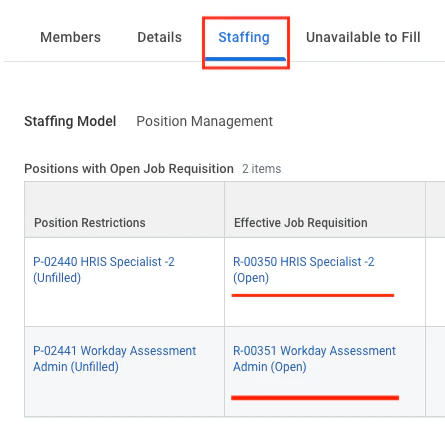
        Navigate to your <i>Supervisory Organisation</i> page and go to the `Staffing` tab.

        <Info>
          Ensure the Supervisory Organisation's Staffing Model is `Position Management`
        </Info>

        <Frame>
          <img className="rounded-md" style={{ margin: '0 auto', border: '1px solid #efefef' }} alt="SO for JR" src="https://mintcdn.com/stackone-hub-mintlify-faq-auth-1778741320/eOzUADJx1Wl1_6Vk/images/workday-background-check/SO_for_JR.png?fit=max&auto=format&n=eOzUADJx1Wl1_6Vk&q=85&s=ef902cf411729934de835ac592d73eb5" width="445" height="427" data-path="images/workday-background-check/SO_for_JR.png" />
        </Frame>

        Under the `Positions with Open Job Requisition` section, you'll find a list of job requisitions that are configured to send notifications for the background check stage.
      </Step>

      <Step title="Creating a new job requisition">
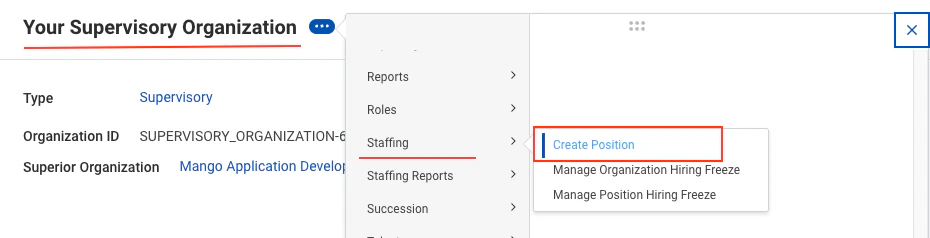
        If no jobs are listed under `Positions with Open Job Requisition`, find `Create Position` under the `Staffing` tab in the three-dot menu.
        <Frame>
          <img className="rounded-md" style={{ margin: '0 auto', border: '1px solid #efefef' }} alt="Create Job Position" src="https://mintcdn.com/stackone-hub-mintlify-faq-auth-1778741320/eOzUADJx1Wl1_6Vk/images/workday-background-check/SO_1.png?fit=max&auto=format&n=eOzUADJx1Wl1_6Vk&q=85&s=dcfbec0bf0631c15e2216526dfb50b59" width="930" height="238" data-path="images/workday-background-check/SO_1.png" />
        </Frame>

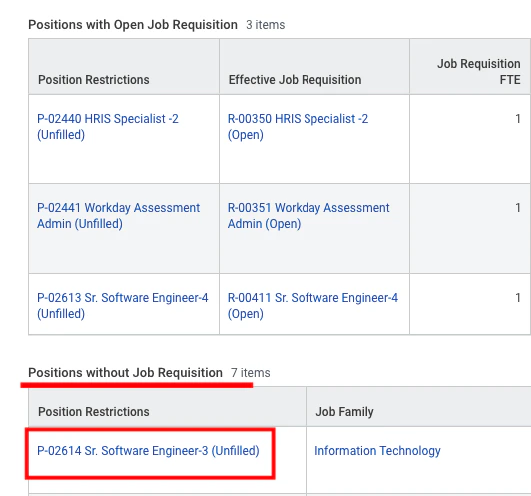
        Complete the required details to create a position. It will then appear in the `Positions without Job Requisition` section.
        <Frame>
          <img className="rounded-md" style={{ margin: '0 auto', border: '1px solid #efefef' }} alt="Created Job Position" src="https://mintcdn.com/stackone-hub-mintlify-faq-auth-1778741320/eOzUADJx1Wl1_6Vk/images/workday-background-check/SO_2.png?fit=max&auto=format&n=eOzUADJx1Wl1_6Vk&q=85&s=f19b034e651eef35e032e3506f1c5c29" width="531" height="496" data-path="images/workday-background-check/SO_2.png" />
        </Frame>

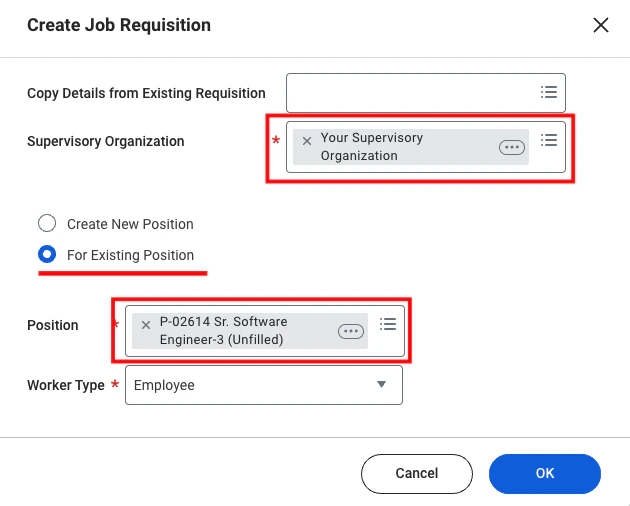
        Navigate to `Create Job Requisition`, select your supervisory organisation and position, click `OK`, complete the Job Requisition form, and then `Submit` it.
        <Frame>
          <img className="rounded-md" style={{ margin: '0 auto', border: '1px solid #efefef' }} alt="Add in Position in Job Req" src="https://mintcdn.com/stackone-hub-mintlify-faq-auth-1778741320/eOzUADJx1Wl1_6Vk/images/workday-background-check/SO_3.png?fit=max&auto=format&n=eOzUADJx1Wl1_6Vk&q=85&s=a6b9cd48aa93e6a846e6f1e91813f04c" width="630" height="506" data-path="images/workday-background-check/SO_3.png" />
        </Frame>

        The position will now appear in the `In Progress Requisition Actions` section.

        <Frame>
          <img className="rounded-md" style={{ margin: '0 auto', border: '1px solid #efefef' }} alt="Added in Position in Job Req" src="https://mintcdn.com/stackone-hub-mintlify-faq-auth-1778741320/eOzUADJx1Wl1_6Vk/images/workday-background-check/SO_4.png?fit=max&auto=format&n=eOzUADJx1Wl1_6Vk&q=85&s=0ce8d90ddfe8c27fab8fdb1b0af31c2f" width="1246" height="126" data-path="images/workday-background-check/SO_4.png" />
        </Frame>

        Once the job requisition is approved, it will appear in the `Positions with Open Job Requisition` section and will be enabled for notifications.

        <Frame>
          <img className="rounded-md" style={{ margin: '0 auto', border: '1px solid #efefef' }} alt="Approved Job Req" src="https://mintcdn.com/stackone-hub-mintlify-faq-auth-1778741320/eOzUADJx1Wl1_6Vk/images/workday-background-check/SO_5.png?fit=max&auto=format&n=eOzUADJx1Wl1_6Vk&q=85&s=e9f5c5f674ad9b9e5e669a92cec8cc65" width="918" height="154" data-path="images/workday-background-check/SO_5.png" />
        </Frame>
      </Step>
    </Accordion>

    <Frame>
      <img className="rounded-md" style={{ margin: '0 auto', border: '1px solid #efefef' }} alt="Candidate Job Apply" src="https://mintcdn.com/stackone-hub-mintlify-faq-auth-1778741320/eOzUADJx1Wl1_6Vk/images/workday-background-check/workday_bc_candidate_profile_applied_to_job_18.png?fit=max&auto=format&n=eOzUADJx1Wl1_6Vk&q=85&s=4a8bde31cd2850fdf02ba67e3cea5ff2" width="570" height="413" data-path="images/workday-background-check/workday_bc_candidate_profile_applied_to_job_18.png" />
    </Frame>

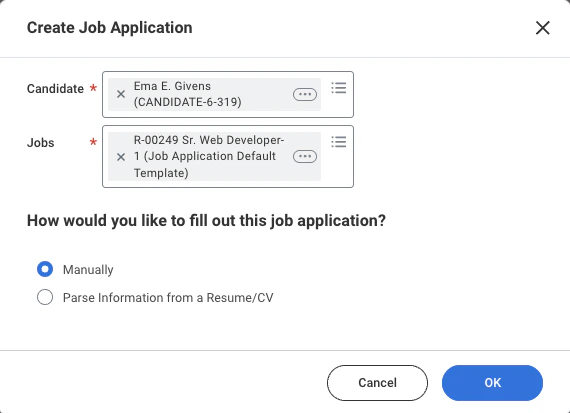
    Complete the required details and click the `OK` button to submit the job application.
  </Step>
</Steps>

## Move the candidate to the Background Check stage in Workday

<Steps>
  <Step title="Navigate to the Job Requisition">
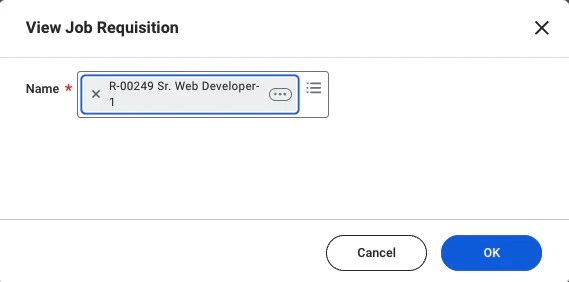
    Go to the <i>Job Requisitions</i> page by selecting the same Job Requisition for which the candidate has applied.
    <Frame>
      <img className="rounded-md" style={{ margin: '0 auto', border: '1px solid #efefef' }} alt="View JR" src="https://mintcdn.com/stackone-hub-mintlify-faq-auth-1778741320/eOzUADJx1Wl1_6Vk/images/workday-background-check/workday_bc_view_JR_19.png?fit=max&auto=format&n=eOzUADJx1Wl1_6Vk&q=85&s=2bc1f3a16f54dbf457618eb34ea50aeb" width="569" height="282" data-path="images/workday-background-check/workday_bc_view_JR_19.png" />
    </Frame>

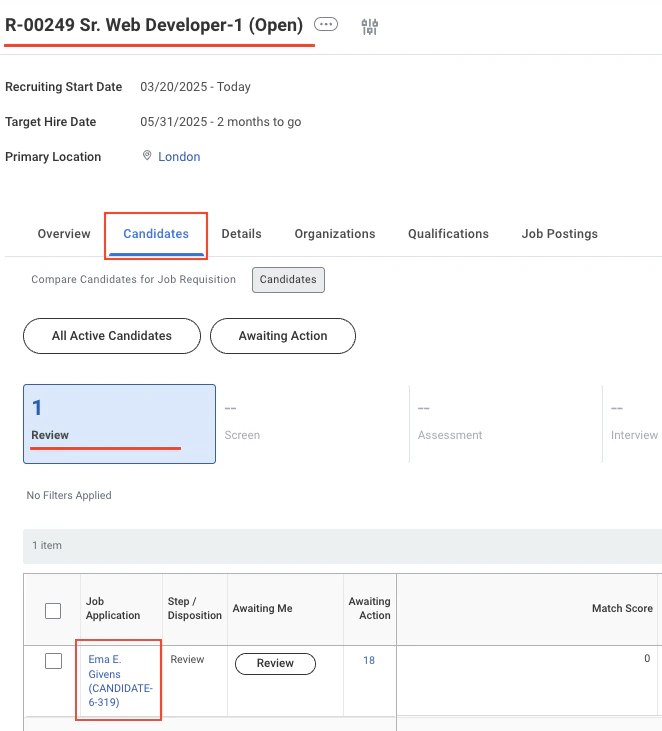
    Navigate to the `Candidate` tab and select the `Review` tab, where the candidate will be displayed in the grid.
    <Frame>
      <img className="rounded-md" style={{ margin: '0 auto', border: '1px solid #efefef' }} alt="Candidate Job Apply" src="https://mintcdn.com/stackone-hub-mintlify-faq-auth-1778741320/eOzUADJx1Wl1_6Vk/images/workday-background-check/workday_bc_JR_20.png?fit=max&auto=format&n=eOzUADJx1Wl1_6Vk&q=85&s=658725d4a267bcc92e30e23701888031" width="662" height="731" data-path="images/workday-background-check/workday_bc_JR_20.png" />
    </Frame>
  </Step>

  <Step title="Move the candidate from Review to Background Check stage">
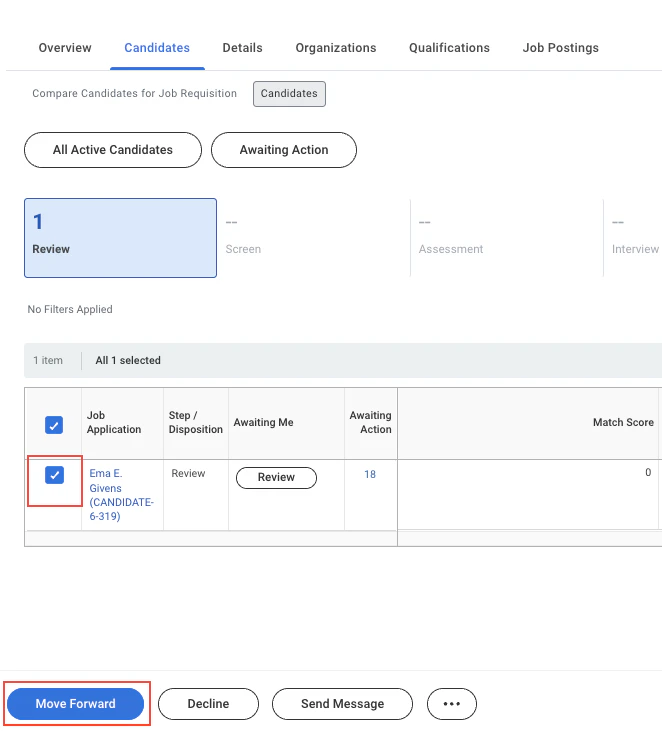
    Select the candidate in the grid and click the `Move Forward` button.
    <Frame>
      <img className="rounded-md" style={{ margin: '0 auto', border: '1px solid #efefef' }} alt="View JR" src="https://mintcdn.com/stackone-hub-mintlify-faq-auth-1778741320/eOzUADJx1Wl1_6Vk/images/workday-background-check/workday_bc_jr_move_button_21.png?fit=max&auto=format&n=eOzUADJx1Wl1_6Vk&q=85&s=b99232df03a237e1bab7143600634dd8" width="662" height="731" data-path="images/workday-background-check/workday_bc_jr_move_button_21.png" />
    </Frame>
  </Step>

  <Step title="Select the Background Check stage">
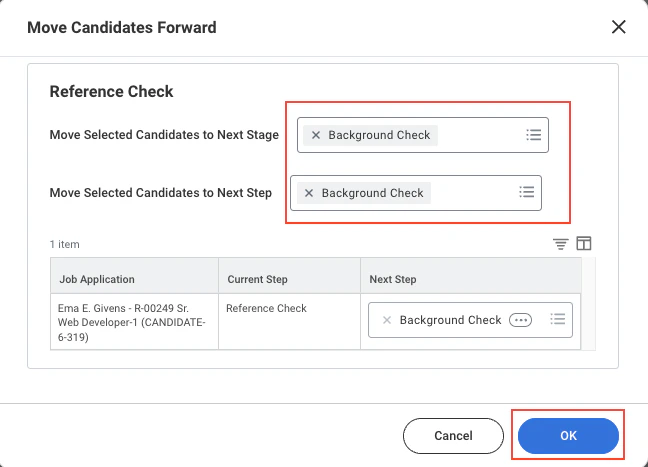
    In the pop-up window, select the next stage. If the Background Check stage isn't immediately available, you may need to move through stages one at a time. For the Background Check stage, choose `Background Check` in both dropdown menus.
    <Frame>
      <img className="rounded-md" style={{ margin: '0 auto', border: '1px solid #efefef' }} alt="Candidate Job Apply" src="https://mintcdn.com/stackone-hub-mintlify-faq-auth-1778741320/eOzUADJx1Wl1_6Vk/images/workday-background-check/workday_bc_jr_moved_to_bc_stage_22.png?fit=max&auto=format&n=eOzUADJx1Wl1_6Vk&q=85&s=c12276b082490354e42d8bd1e6a4a9d9" width="648" height="467" data-path="images/workday-background-check/workday_bc_jr_moved_to_bc_stage_22.png" />
    </Frame>

    Click the `OK` button to move the candidate.
  </Step>

  <Step title="Confirm the candidate has moved to the Background Check stage">
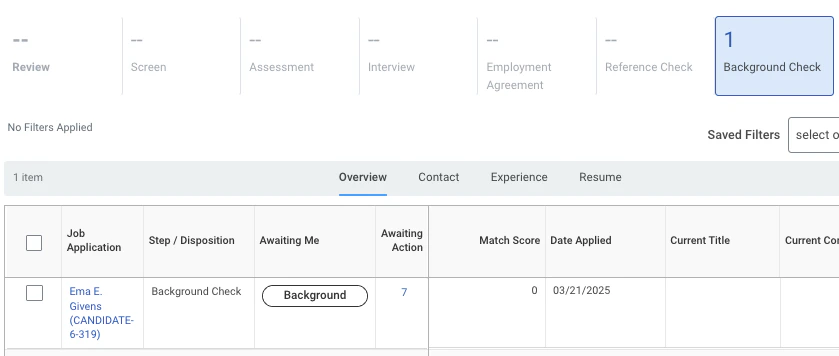
    Navigate to the `Background Check` tab to confirm the candidate is now in the Background Check stage.
    <Frame>
      <img className="rounded-md" style={{ margin: '0 auto', border: '1px solid #efefef' }} alt="View JR" src="https://mintcdn.com/stackone-hub-mintlify-faq-auth-1778741320/eOzUADJx1Wl1_6Vk/images/workday-background-check/workday_bc_jr_bc_satge_success_23.png?fit=max&auto=format&n=eOzUADJx1Wl1_6Vk&q=85&s=4934bd83a0f6c92ad4272dea27a6b7fd" width="839" height="356" data-path="images/workday-background-check/workday_bc_jr_bc_satge_success_23.png" />
    </Frame>
  </Step>
</Steps>

## Send a background check invitation to the candidate

<Steps>
  <Step title="Submit a background check as a recruiter">
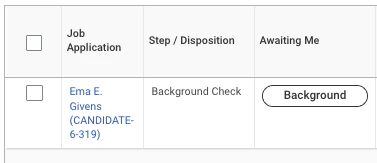
    As the recruiter, you should see the `Background Check` button next to the candidate's name.
    <Frame>
      <img className="rounded-md" style={{ margin: '0 auto', border: '1px solid #efefef' }} alt="Sending Invite" src="https://mintcdn.com/stackone-hub-mintlify-faq-auth-1778741320/eOzUADJx1Wl1_6Vk/images/workday-background-check/workday_bc_jr_bc_stage_button_to_submit_24.png?fit=max&auto=format&n=eOzUADJx1Wl1_6Vk&q=85&s=31ce4af04f53731fb35b3bd3c7a81b15" width="377" height="163" data-path="images/workday-background-check/workday_bc_jr_bc_stage_button_to_submit_24.png" />
    </Frame>
  </Step>

  <Step title="Send the background check invitation">
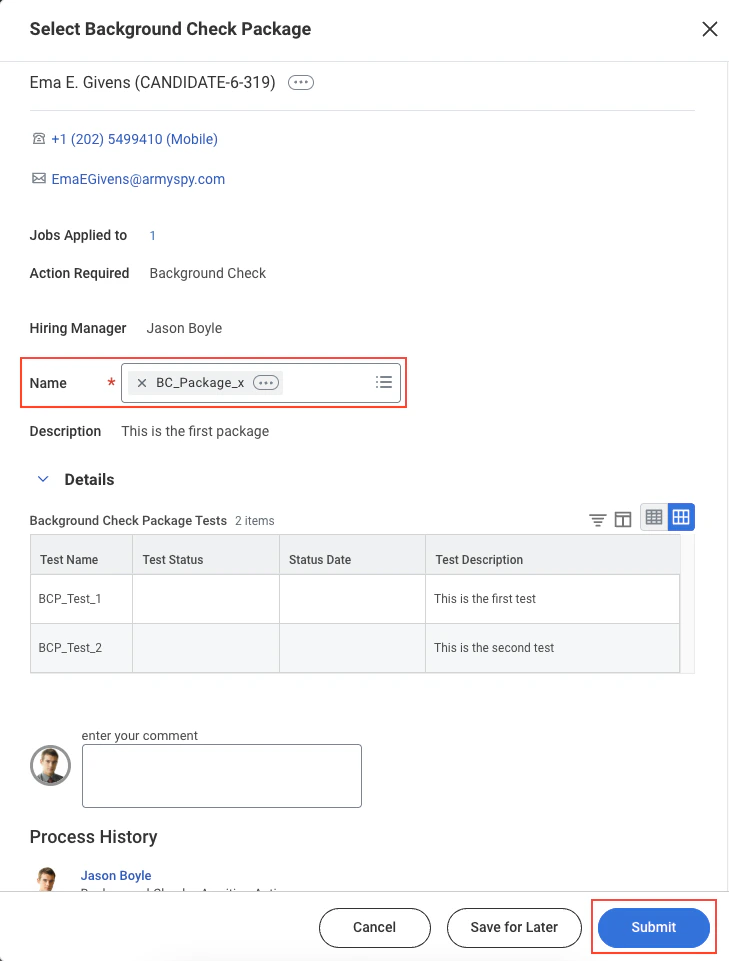
    Select the Background Check Package from the dropdown menu.
    <Frame>
      <img className="rounded-md" style={{ margin: '0 auto', border: '1px solid #efefef' }} alt="Send Invite" src="https://mintcdn.com/stackone-hub-mintlify-faq-auth-1778741320/eOzUADJx1Wl1_6Vk/images/workday-background-check/workday_bc_jr_bc_submission_25.png?fit=max&auto=format&n=eOzUADJx1Wl1_6Vk&q=85&s=97d185691d40de6b5a6d26edc370c45a" width="729" height="961" data-path="images/workday-background-check/workday_bc_jr_bc_submission_25.png" />
    </Frame>

    Click the `Submit` button to trigger and send the webhook notification from Workday.
  </Step>
</Steps>

## Verify the background check invitation has been sent

To access the *Job Application*, click on the candidate's name. Navigate to *Screening* > Background Check History tab to view the invitation status.

<Frame>
  <img className="rounded-md" style={{ margin: '0 auto', border: '1px solid #efefef' }} alt="Sent Invite" src="https://mintcdn.com/stackone-hub-mintlify-faq-auth-1778741320/eOzUADJx1Wl1_6Vk/images/workday-background-check/workday_bc_job_application_submitted_bc_26.png?fit=max&auto=format&n=eOzUADJx1Wl1_6Vk&q=85&s=2d15e692af458c25bcef18f33cfb513a" width="1395" height="270" data-path="images/workday-background-check/workday_bc_job_application_submitted_bc_26.png" />
</Frame>

## View the candidate's background check results

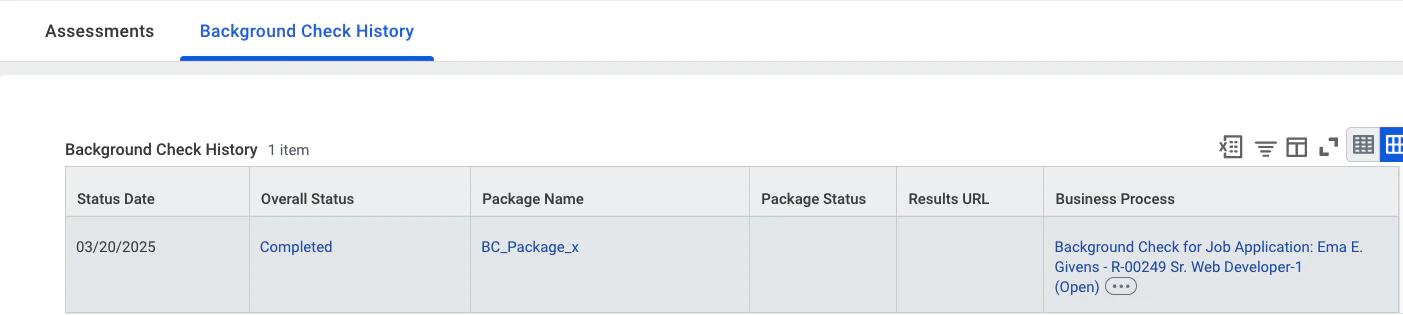
To access the *Job Application*, click on the candidate's name. Navigate to *Screening* > Background Check History tab to view the updated results.
<Frame>
  <img className="rounded-md" style={{ margin: '0 auto', border: '1px solid #efefef' }} alt="Background Check Results" src="https://mintcdn.com/stackone-hub-mintlify-faq-auth-1778741320/eOzUADJx1Wl1_6Vk/images/workday-background-check/workday_bc_job_application_result_updated_27.png?fit=max&auto=format&n=eOzUADJx1Wl1_6Vk&q=85&s=60965f7e8a185b6e97b621e0a7c0e06b" width="1403" height="315" data-path="images/workday-background-check/workday_bc_job_application_result_updated_27.png" />
</Frame>

## Useful Links

<Card title="API Reference" icon="link" href="https://doc.workday.com/">
  [https://doc.workday.com/](https://doc.workday.com/)
</Card>
